Usage
Authentication
The extension utilises Jira’s very simple basic authentication to make requests to the server. You’ll need an account that has permissions to see issues of the project you want to import the stories from and additional permissions to edit an issue if you want to export the story points back to the server. See Atlassian’s docs on project permissions for more information.
Jira Connection
The Planning Poker Jira extension provides a new model called Jira Connection. You can use this model to save all the necessary data to import stories and their description from a Jira backend. A Jira Connection consists of multiple fields:
Field Name |
Description |
|---|---|
Label |
A human readable label for the connection. You can choose this to be whatever you want to help you differentiate different Jira Connections from one another |
API URL |
The API URL of the Jira backend you want to import from/export to |
Username |
The username used for the authentication at the API |
Password |
The password used for the authentication at the API |
Story Points Field |
The name of the field the Jira backend uses to store the story points |
Note
The username and password can be left blank if you don’t want to save them in the database (the password would be saved in an encrypted field). But doing so will cause you to re-enter your credentials every time you want to import/export stories.
When creating/changing a Jira Connection you can tick a checkbox called ‘Test Connection’ which will try to verify the credentials you entered.
Importing Stories
Once you have created a Jira Connection, you can start importing stories from there. Navigate to the Jira Connection admin page.
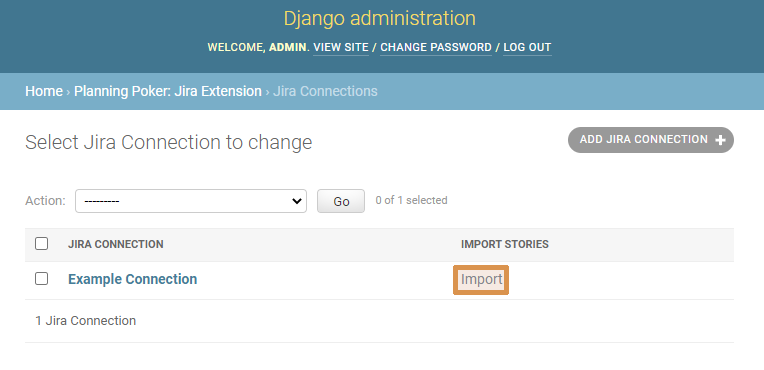
There you’ll see all your saved connections with an “Import Stories” link next to them. You’ll be redirected to a page where you are presented with a form which allows you to import stories if you click on said link.
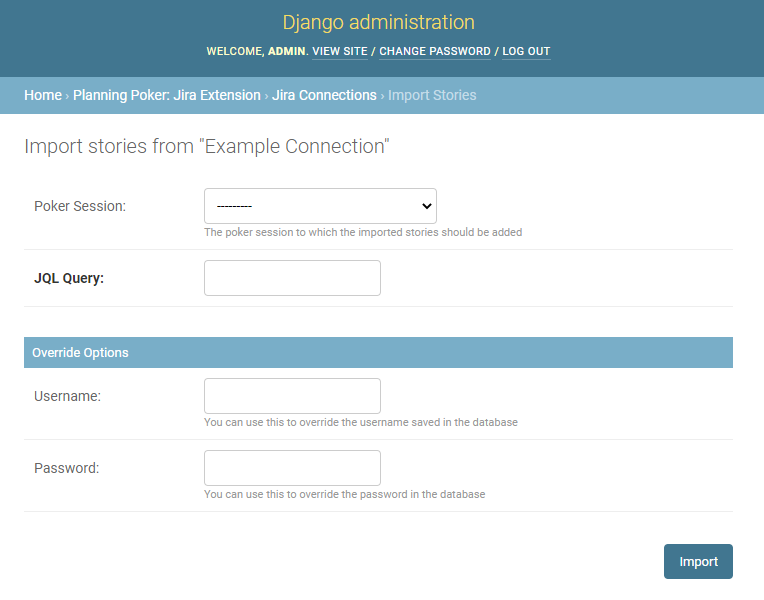
Field Name |
Description |
|---|---|
Poker Session |
Optional: The poker session to which you want to import the stories |
JQL Query |
The query which should be used to retrieve the stories from the Jira backend |
Username |
Use this if you didn’t save a username in the Jira Connection or override the username from the database |
Password |
Use this if you didn’t save a password in the Jira Connection or override the password from the database |
The Jira issue will be mapped onto a Planning Poker story as follows:
Planning Poker Story |
Jira Issue |
|---|---|
Ticket Number |
Key |
Title |
Summary |
Description |
Description |
Exporting Story Points
Exporting story points is as simple as importing stories. Go to the Story admin page and select all the stories from which you want to export the story points.
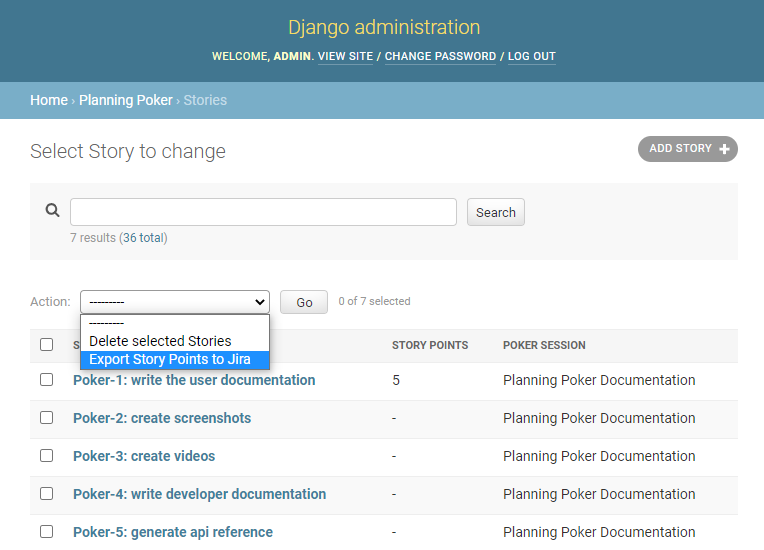
Then choose the “Export Story Points to Jira” action and click the “Go” button. You’ll then be prompted with a form which allows you to export the story points.
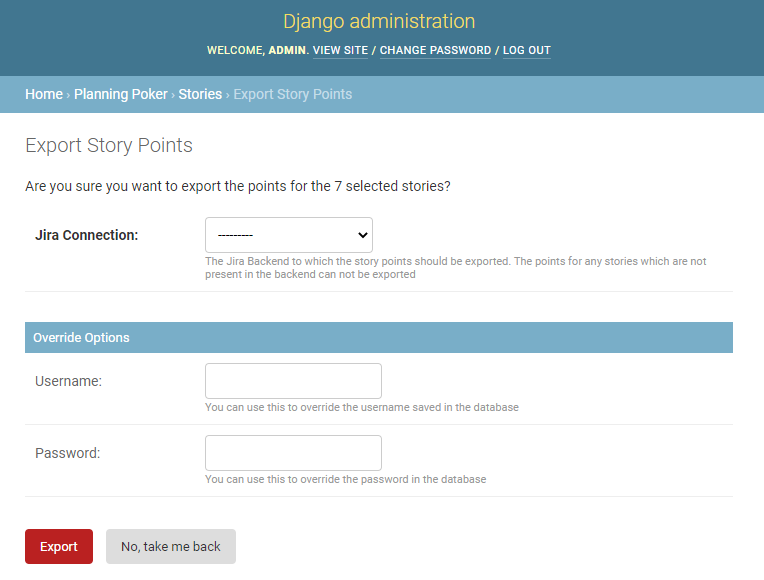
Field Name |
Description |
|---|---|
Jira Connection |
This determines the Jira backend you want to export the story points to |
Username |
Use this if you didn’t save a username in the Jira Connection or override the username from the database |
Password |
Use this if you didn’t save a password in the Jira Connection or override the password from the database |
The field to which the story points are exported is the Story Points Field specified by the Jira Connection. The
stories in the Jira backend will be matched with the story’s ticket number in order to export the story points. The
points for any story which couldn’t be matched can’t be exported.